

USB for Car Stereo: What Your Port Can Do

You plug a USB stick into the dash, select the music source, and get nothing. The same stick worked in another car, so it's easy to assume this stereo's port is broken. Or your phone charges normally, but CarPlay never appears.
Choosing USB for a car stereo starts with a less obvious question: what did the receiver manufacturer design that particular socket to do? Connector shape and storage size won't answer it. The receiver's firmware, supported files, and assigned port functions determine what happens after you plug something in.
Table of Contents
- What Your Car Stereo USB Port Actually Does
- How to Format a USB Stick the Stereo Will Read
- File Systems Codecs and Library Limits
- Charging Power versus Data Speed
- Fixes When the Stick or Phone Will Not Connect
- Other Ways to Play Music in the Same Car
- Confirm the Port Before You Buy or Book
What Your Car Stereo USB Port Actually Does
A silent USB stick doesn't prove the socket has failed. That socket might supply power without reading files, or it might be assigned to smartphone integration rather than ordinary music playback. Identify its job before replacing anything.
What a car stereo USB port can and cannot do
| Port role | What it does | What it will not do | How to tell |
|---|---|---|---|
| Charge only | Powers a phone at the port rating | Will not list songs or start CarPlay or Android Auto | Battery icon only and no USB source |
| Mass storage playback | Reads audio files from a USB stick | Will not run phone apps or navigation | Source menu lists folders or tracks |
| Smartphone projection | Starts wired Apple CarPlay or Android Auto | May ignore a music stick | Phone interface appears after a data cable is plugged in |
| Firmware or service | Updates receiver software | Not a daily listening port | Manual labels it update or service |
These are functional categories, not necessarily separate sockets. A receiver can combine charging, music playback, and phone projection in the same port, but you shouldn't assume it does.
A charge-only port can make a phone look connected without establishing communication with the stereo. A mass-storage port reads a drive's directory and supported audio files. Smartphone projection instead requires communication between a compatible phone and receiver.
The receiver, also called the head unit, manages those capabilities. Our explanation of what a head unit does helps distinguish the dashboard equipment from the speakers and amplifiers connected to it.
Try it while parked
Open the manual to USB, media, or smartphone connectivity. Then check each accessible socket with the appropriate device while the vehicle is parked. Select the USB source for a stick, or follow the phone-connection prompts for projection.
Don't assume adjacent ports are interchangeable. In an aftermarket installation, a front socket might handle media while a rear harness connection is assigned to the phone. Record which connection does which job rather than repeatedly swapping devices at random.
Integrated controls also deserve a sensible safety boundary. NHTSA's driver electronic-device observations found visible handheld-device manipulation rose from 3.0% of drivers in 2023 to 4.5% in 2024, while 1.9% of passenger-vehicle drivers were observed holding cellphones to their ears in 2024. These observations don't measure USB-stereo use and aren't crash-distraction rates.
Set up music and navigation before moving. Dashboard access doesn't make every interaction distraction-free.
Before formatting anything: Write down the job you need: play local files, connect your phone's interface, or charge the phone.
How to Format a USB Stick the Stereo Will Read
Formatting is useful only after you've confirmed that the port supports USB music playback. It changes how the drive stores its files, not what functions the stereo has.
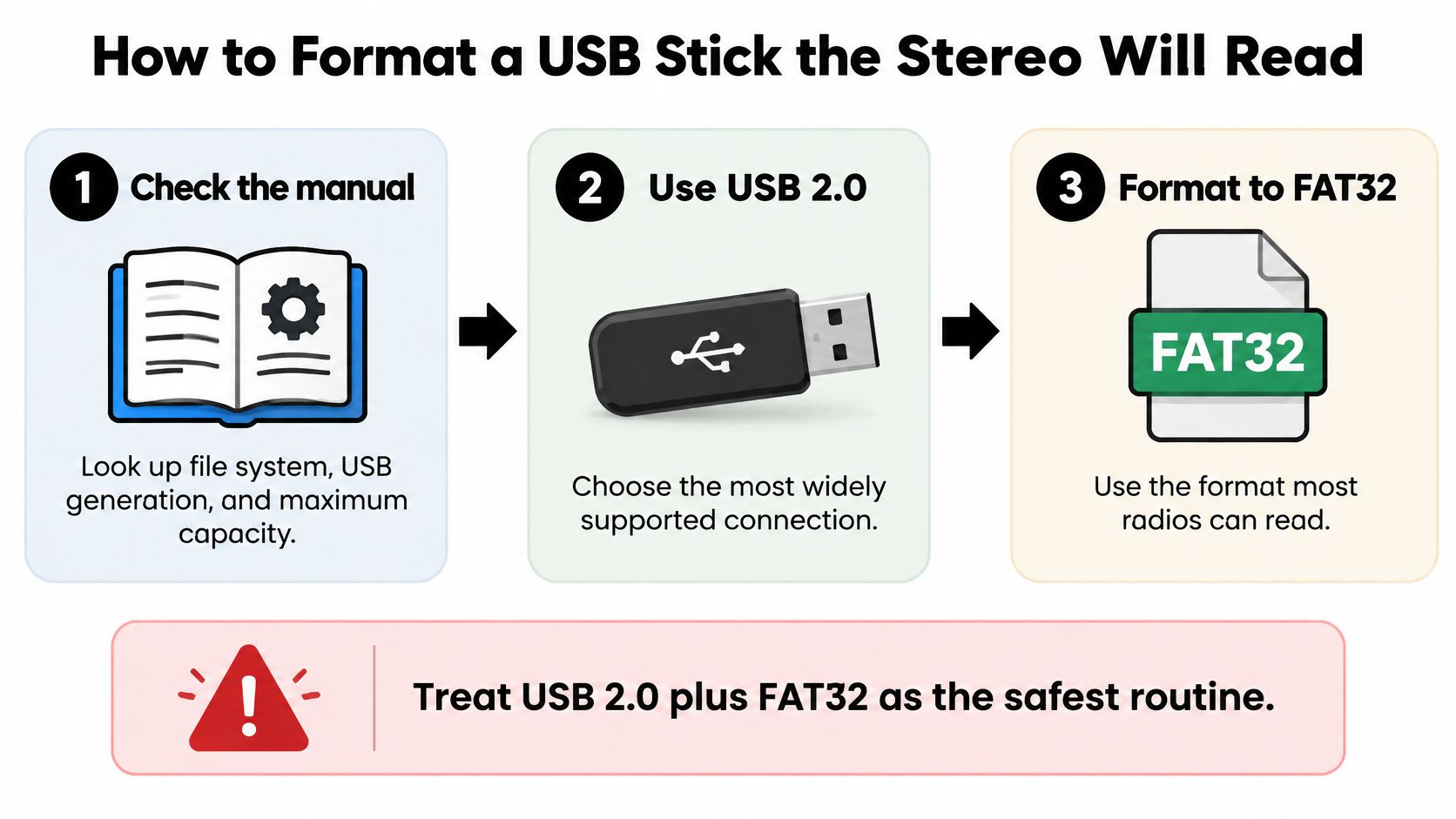
Use this workflow as a preparation checklist, with the receiver's manual taking priority over any general recommendation.
Prepare a simple test drive
- Find the receiver's requirements. Look for the supported file system, USB device type, capacity ceiling, and audio formats. Don't substitute a manual for a similar-looking radio. Factory equipment can change between trim levels, and aftermarket receivers have their own rules.
- Copy existing files to your computer. Formatting erases the drive. Open the backup folder and confirm that your files are there before continuing, especially if the stick also holds documents or photographs.
- Format using the documented file system. If the receiver calls for FAT32, choose FAT32 and the default allocation size. Don't choose exFAT because the computer offers it first. If Windows doesn't offer the required format, use a smaller suitable drive or a reputable FAT32 formatting utility, carefully checking the selected drive before erasing it.
- Create a folder named Music. Keep the initial layout shallow and use short, plain names. For example, Music containing a few clearly named tracks is easier to troubleshoot than a copied library full of nested artist, album, and compilation folders.
- Start with supported stereo MP3 or AAC files. Use ordinary, unprotected files that you know play correctly. Save lossless formats, playlists, and elaborate folder arrangements for later tests so you're not changing every variable at once.
- Eject the drive through the computer's operating system. Wait until file copying has finished. Removing it mid-transfer can leave incomplete files that look like a stereo compatibility problem.
- Test before a trip. Insert the drive into the media port, select the USB source, and allow indexing to finish. Play a known track, skip forward, and check that the displayed title matches the file you selected.
Buy for compatibility, not packaging
A modest-capacity stick is often a better diagnostic tool than a large, newly purchased drive. The receiver still has to recognize its storage layout and decode its contents; a faster label doesn't expand either capability.
If you're comparing small-capacity products, Custom Mark's 8 GB flash drives for marketing provide an example of that product category, not a guarantee of automotive compatibility. Check the actual drive specification against your receiver before purchasing.
Once the simple test works, add your library in manageable groups. If playback fails only after adding more material, investigate the files and directory structure instead of immediately formatting again.
File Systems Codecs and Library Limits
A newer or larger USB stick isn't automatically better for a car stereo. The receiver's firmware must recognize the device, mount its file system, find the tracks, and decode the audio. Failure at any stage can leave you with an empty source screen.
For a concrete manufacturer example, GM's Chevrolet infotainment manual specifies USB Mass Storage Class devices and lists FAT32, NTFS, and HFS+ among supported file systems. That's a specification for the covered equipment, not permission to use those formats in every vehicle.
USB playback limits that stop a car stereo
| Limit | Safe choice | Where playback breaks |
|---|---|---|
| File system | FAT32 when listed by the receiver | exFAT or NTFS on FAT32-only equipment; some GM systems also support NTFS and HFS+ |
| Drive capacity | Modest capacity within the manual's stated ceiling | A drive exceeds the receiver's documented capacity limit |
| Folder depth | Shallow, plain-named folders | Deep trees, unsupported symbols, or names beyond documented limits |
| File count | A small test library before a full collection | The receiver's file or folder indexing ceiling is exceeded |
| Codec | Supported stereo MP3 or AAC | DRM, multi-channel audio, or unlisted FLAC, ALAC, WAV, and DSD files |
| Sample rate and bitrate | Encoding parameters explicitly listed in the manual | The format is supported, but the file's encoding parameters aren't |
A file extension isn't the whole specification
The file system is the drive's organizational structure. The codec determines how audio is encoded. A stereo can recognize the drive perfectly and still refuse its music because those are separate compatibility checks.
Even a supported extension doesn't guarantee playback. An audio-format listing can include restrictions on sampling frequency, bitrate, channel configuration, and copy protection. The Genesis playable-media reference, for example, lists formats alongside their encoding parameters rather than treating the filename extension as sufficient.
That's why changing a filename from an unsupported extension to .mp3 won't help. You need to convert the actual audio with an encoder, using settings the stereo accepts. Keep the original files on your computer so you can make compatible copies without overwriting your library.
Use the failure pattern as evidence
If every track disappears, suspect the device or file system first. If some albums play and others don't, compare their codecs, protection status, and encoding settings. If only folders nested several levels deep are missing, simplify the directory layout.
Playlists add another possible mismatch because they can reference locations that exist on your computer but not on the stick. Establish direct folder playback before adding playlist files or copying an entire music-management application's directory.
The useful question isn't whether the stick works somewhere. It's whether this receiver supports the stick's format and the files stored on it.
Build a small test folder from known-compatible tracks before copying the whole collection. A successful, simple library gives you a baseline you can troubleshoot.
Charging Power versus Data Speed
A phone can receive power through USB while getting no usable data connection. It can also exchange data correctly while charging too slowly for your needs. Charging capability and data capability are separate specifications.
The distinction is easier to see when the socket's appearance is removed from the comparison.
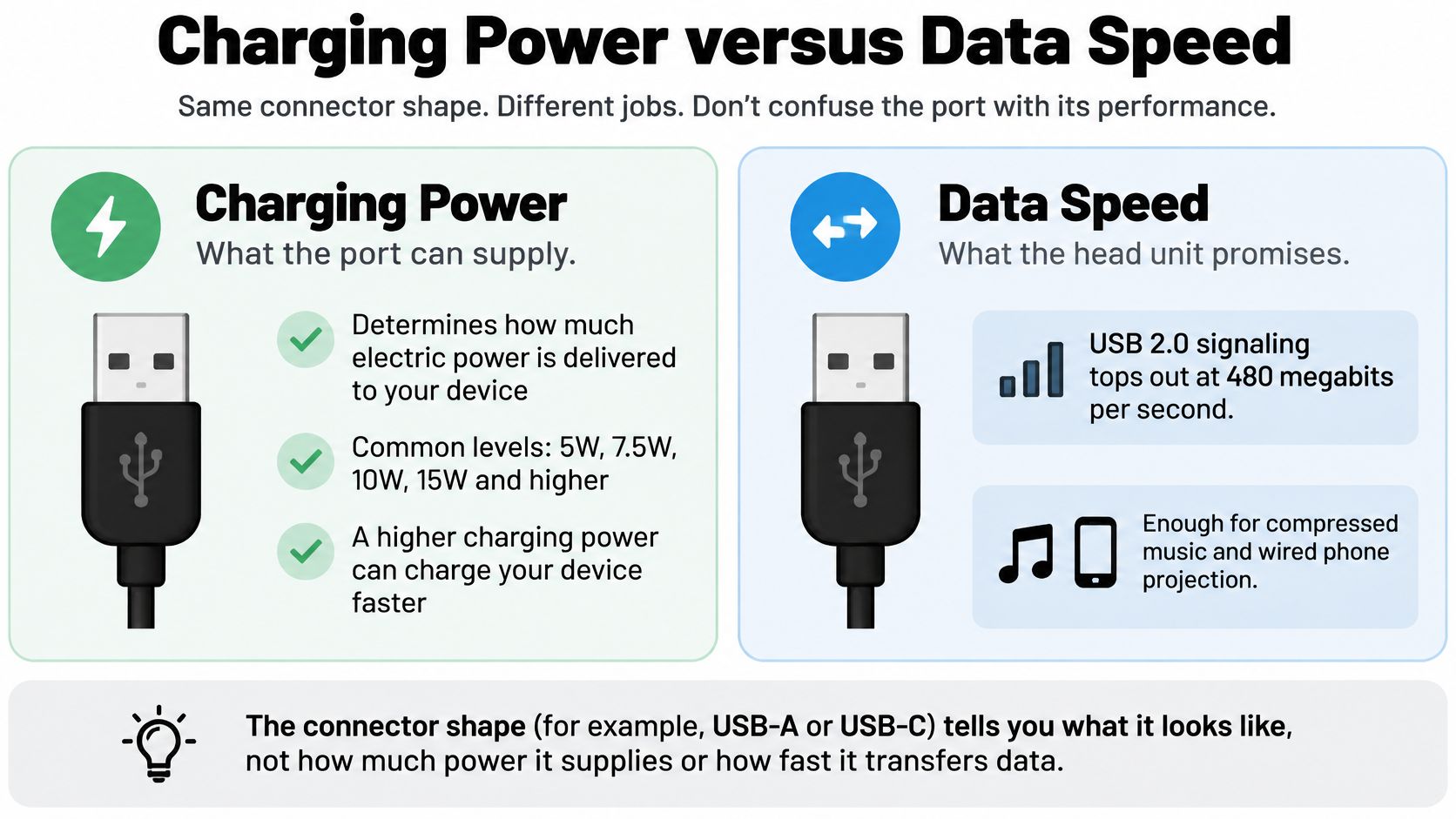
According to the USB-IF Type-C system overview, USB 2.0 signaling supports up to 480 Mbps, while basic USB bus power is typically 5 V at up to 500 mA, or 2.5 W, before device and operating-state limits are considered. Those values describe different capabilities, and neither guarantees a particular receiver's implementation.
Compressed music doesn't need a faster-looking connector to sound better. Likewise, modest bus power shouldn't be confused with the charging capability of a USB Power Delivery charger.
What USB-C does and doesn't promise
USB-C identifies a connector, not a complete feature package. A Type-C implementation can retain older data capability, and a cable's supported data mode is distinct from its participation in power delivery.
A USB-A-to-USB-C adapter changes the physical connection. It can't install missing audio decoders, add smartphone-projection support, or increase the receiver's available power. Buy it to connect compatible hardware, not to upgrade the stereo's firmware.
Before purchasing installation hardware:
- Read the specification: Find the receiver's stated USB mode, output-current rating, and supported phone protocol.
- Test the intended devices: Confirm the phone on the projection input and the stick on the media input.
- Check the complete cable route: Use a short, shielded, data-rated cable and retest after adding any flush-mount extension.
Keep the USB data run away from amplifier power wiring. A neat dashboard socket isn't a successful installation if the added extension makes the connection unreliable.
For an additional visual explanation, this video accompanies the power-versus-data comparison.
Fixes When the Stick or Phone Will Not Connect
Your phone's battery icon appears, but CarPlay never starts. Current arrived. The data handshake did not. Treat those as separate events, like a shop with the lights on and the counter unattended.
USB stereo symptoms and the first fix
| Symptom | Likely cause | First fix |
|---|---|---|
| Phone charges, projection never starts | Power path works while data pairing fails | Move to the documented projection input and remove every hub or adapter |
| Direct port works, dashboard socket fails | Flush-mount extension, adapter, or joiner weakens the run | Bypass the added socket, then reintroduce one piece at a time |
| Link drops over bumps or door slams | Connector movement, cable strain, or a pinched lead | Secure the plug, reroute slack, and inspect the socket for play |
| Works until the trim goes back | Harness stressed during reassembly or wrong rear input used | Repeat the same test before and after the dash closes |
If a stick never mounts at all, revisit format, capacity, folder depth, and codec rules first. This sequence assumes the media has already been screened and the question is now the connection path.
Run a single-variable ladder
Start with the shortest possible route. Phone to the receiver's smartphone input. Stick to the receiver's media input. No hub, no gender changer, no “temporary” extension coiled behind the panel.
Apple's CarPlay connection guidance points to the designated CarPlay or smartphone USB port, current software, and a different cable or USB port when the first attempt fails. Use that as the phone-side baseline, then keep the device and files constant while you change only the cable. If nothing changes, change only the port. If that fails, change only the device or the test files.
The order matters because USB faults stack. A borderline extension can hide behind a marginal cable, and a receiver with a small indexed-library ceiling can look like a bad socket when the wall is firmware. The same stick can pass in one car and fail in another because the receiver's limits outrank connector shape and drive size. A USB-C socket does not add codecs, raise charging power, or create CarPlay by itself.
Inspect the installed path after substitution
When a direct connection behaves and the dashboard extension does not, the evidence already narrows the search. Inspect the extension lead, any adapter, the rear harness, and the input assignment before pricing a head unit.
Intermittent drops earn a mechanical check early. A plug that shifts slightly can mimic interference, and a cable folded sharply behind the radio can work on the bench yet fail once the panel traps it. Keep the approved USB harness where the receiver manufacturer expects it, mark the rear input used for projection, and test with the actual phone before the dash is closed.
Diagnostic discipline: Change one part of the path at a time. If the link returns after three changes, you have a fix and no explanation.
Stop wiring work until the cable, port, device, and files have each been isolated. That order avoids unnecessary trim removal and gives an installer a clear failure history: what worked directly, what failed through the extension, and which single change brought it back.
Other Ways to Play Music in the Same Car
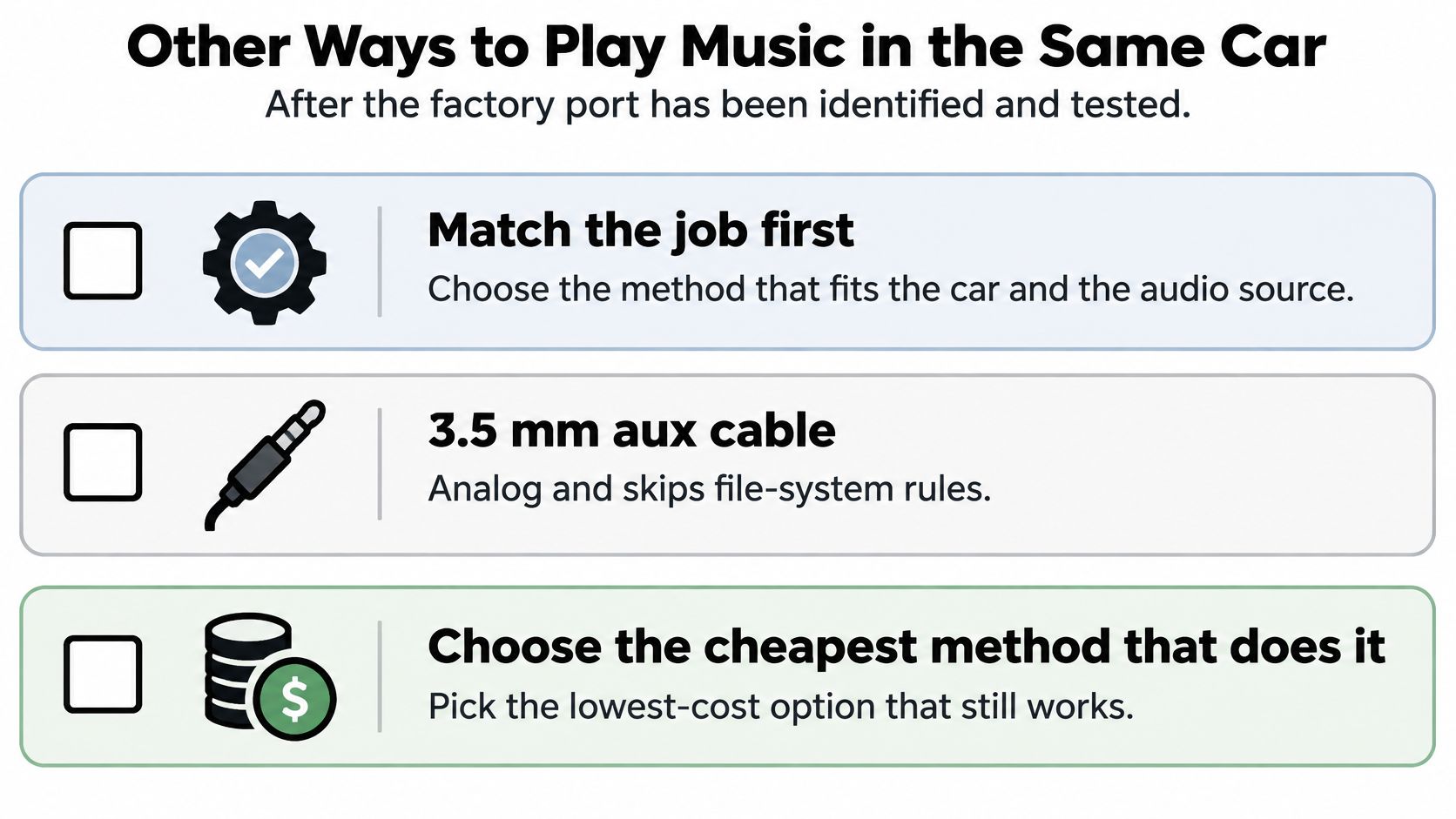
If the factory USB input can't do the job, you don't necessarily need a replacement stereo. Choose the connection that solves your actual problem: hearing music, displaying phone navigation, or integrating both.
The simplest useful option may already be in the dashboard.
Connection methods by the job they solve
| Method | Job it solves | Limit | Pick when |
|---|---|---|---|
| Bluetooth audio | Streams from the phone without a stick | Audio behavior is equipment-specific; pairing doesn't establish wired CarPlay support | The stick's storage rules are the blocker |
| Wireless CarPlay or Android Auto | Removes the daily phone cable | Requires compatible wireless-projection support | The receiver explicitly lists wireless projection |
| USB data port | Provides supported wired projection and a fallback for an unreliable wireless link | Requires a compatible port and data cable | The input is assigned to smartphone use |
| New head unit | Replaces unsuitable factory connectivity or display capability | Requires installation and integration work | The factory equipment cannot perform the required job |
Audio alone needs less integration
An auxiliary input carries analog audio rather than asking the receiver to read a drive. That bypasses file-system and library-indexing restrictions, although it doesn't provide charging, app display, or track information through the analog connection.
It can also introduce audible noise, but hiss isn't inevitable. If the phone and stereo already have suitable connections, an aux cable can be a straightforward choice. Our guide to a car stereo with aux input explains that option in more detail.
Bluetooth similarly lets the phone manage the music library. Pairing for audio, however, isn't proof that the receiver supports CarPlay or Android Auto. Treat music streaming and dashboard app projection as separate purchasing requirements.
Replace the receiver when the missing function matters
A replacement makes sense when you want dashboard maps but the existing equipment can only play audio. It can also be justified when the factory receiver's file restrictions make your preferred listening method impractical.
Installation needs more than a screen that fits the opening. Preserve the appropriate vehicle interfaces, use the approved USB harness, and confirm how steering-wheel controls and factory equipment will be retained.
Never wire a bare USB socket directly to vehicle battery voltage. Use the correct regulated power hardware and receiver connections.
For marine, motorcycle, and UTV installations, add weather exposure, vibration, and connector retention to the decision. A supported data connection still needs a protected, securely mounted cable route. Choose the least expensive method that meets the complete requirement, not merely the cheapest plug.
Confirm the Port Before You Buy or Book
Make the purchase decision with a clear statement: I need local music files, wired phone projection, or charging. Then compare that requirement with the manual and your parked test results.
If the stereo already supports the function, buy only the missing piece. That might be a compatible stick, a dependable data cable, or nothing at all. Don't replace working equipment just because another connector looks newer.
Choose a stick, cable, or installation
- Choose a stick when the receiver supports local playback and you can match its storage and audio requirements. Capacity alone is not the criterion, since file-system and library limits decide what the receiver will index.
- Choose a cable when the receiver supports your phone's projection system but the connection path hasn't passed a direct test. A lead that charges the phone may still lack the wiring needed to carry data.
- Choose an installation when the existing equipment lacks the required function, rather than continuing to buy adapters.
For a receiver replacement, bring the vehicle's trim information and your actual phone. Include the dash kit, harness, steering-wheel-control interface, and any factory-feature retention requirements in the installation discussion. Ask for the final phone test after the dashboard is reassembled, not just while the receiver is sitting outside it.
Fitment detail is why vehicle listings stay narrow. The Apple CarPlay Stereo for Dodge RAM 1500 & 2500 (2013-2018) is offered for a specific model and year range, so check the listing's variants against your truck's trim before ordering rather than relying on a general description such as a large-screen truck radio.
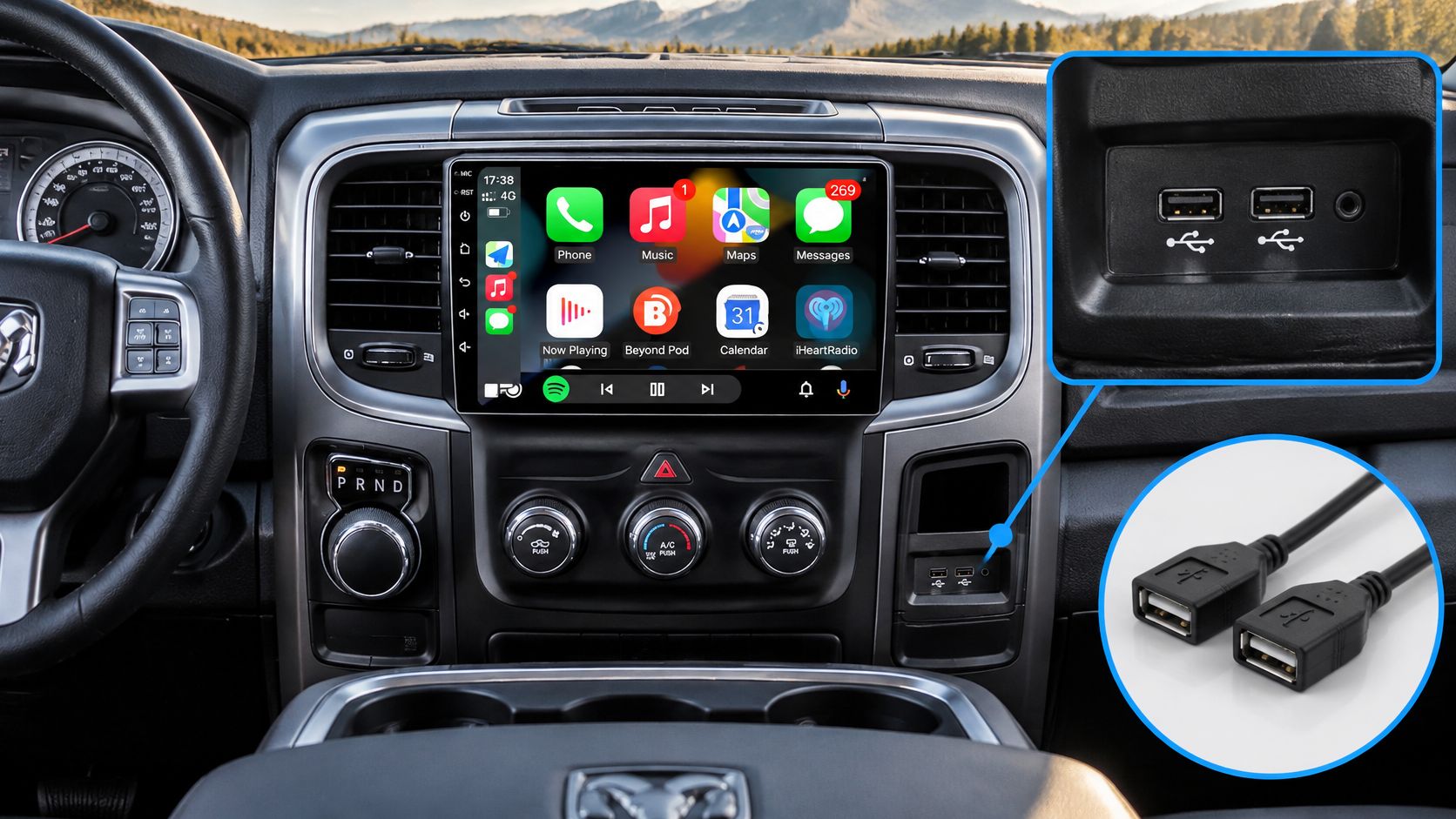
Bring a short description of the symptom, too: whether the phone charges, whether the USB source appears, and whether a direct cable connection works. Those observations are more useful than saying the USB is broken.
A working connection that does the job you need is the goal, and new equipment is only one way to get there.
Audio Jam Inc offers head units, multimedia receivers, and Apple CarPlay and Android Auto integration in Delaware. Visit Audio Jam Inc or bring your vehicle details, phone, and USB requirements to our Bear showroom to confirm compatibility and book the installation your setup needs.