

Car Audio USB: How to Set Up Drives and Phones

You plug in your phone before leaving the driveway. The battery icon lights up, so something's working, but your music doesn't play and CarPlay or Android Auto never appears. That doesn't automatically mean the receiver's broken. Most car audio USB problems come from a mismatch somewhere in one system, the port, cable, drive, phone software, or receiver. Test them in a fixed order and you'll find the weak link without swapping parts at random.
Table of Contents
- Find Out What Your Car's USB Port Can Do
- How to Format a USB Drive for Your Head Unit
- Organizing Music Files for Reliable Playback
- How to Connect a Phone or Drive and Pick CarPlay or Android Auto
- Troubleshooting USB Errors, Symptom by Symptom
- Decide Whether to Fix It Yourself or Book an Install
Find Out What Your Car's USB Port Can Do
Charging proves only that the port supplies power. It doesn't prove the port can read files or carry phone data. A car's USB port can do up to three separate jobs, play files from a flash drive, charge a device, and run CarPlay or Android Auto, and many ports do only one or two.
USB itself isn't vehicle specific. A Xiaomi support history of USB notes the USB 1.0 specification was released in January 1996 and USB 2.0 in April 2000 increased signaling speed to 480 megabits per second. That maturity helps, but connector shape, filesystems, audio formats, and projection support still vary by receiver and vehicle year.
Three Checks Before You Buy Anything
- Read the label: Look for a USB or data symbol, or wording that says charge only.
- Check the manual: Find supported filesystems, formats, and projection. Our guide to what a head unit does explains the receiver's role.
- Match the cable to the job: A charging lead like a 30W spring coil cable for cars is useful for tidy power, but charging speed doesn't confirm data support.
Write down charging yes or no, files yes or no, projection yes or no. That short list tells you what to test next.
How to Format a USB Drive for Your Head Unit
Formatting answers one question: can the receiver read this drive's file system? Get that wrong and a healthy drive can look dead. The sequence below keeps you from changing several variables at once. If the drive mounts on a computer but fails in the car, you have narrowed the fault to the receiver's file-system support, its capacity limits, or the port.
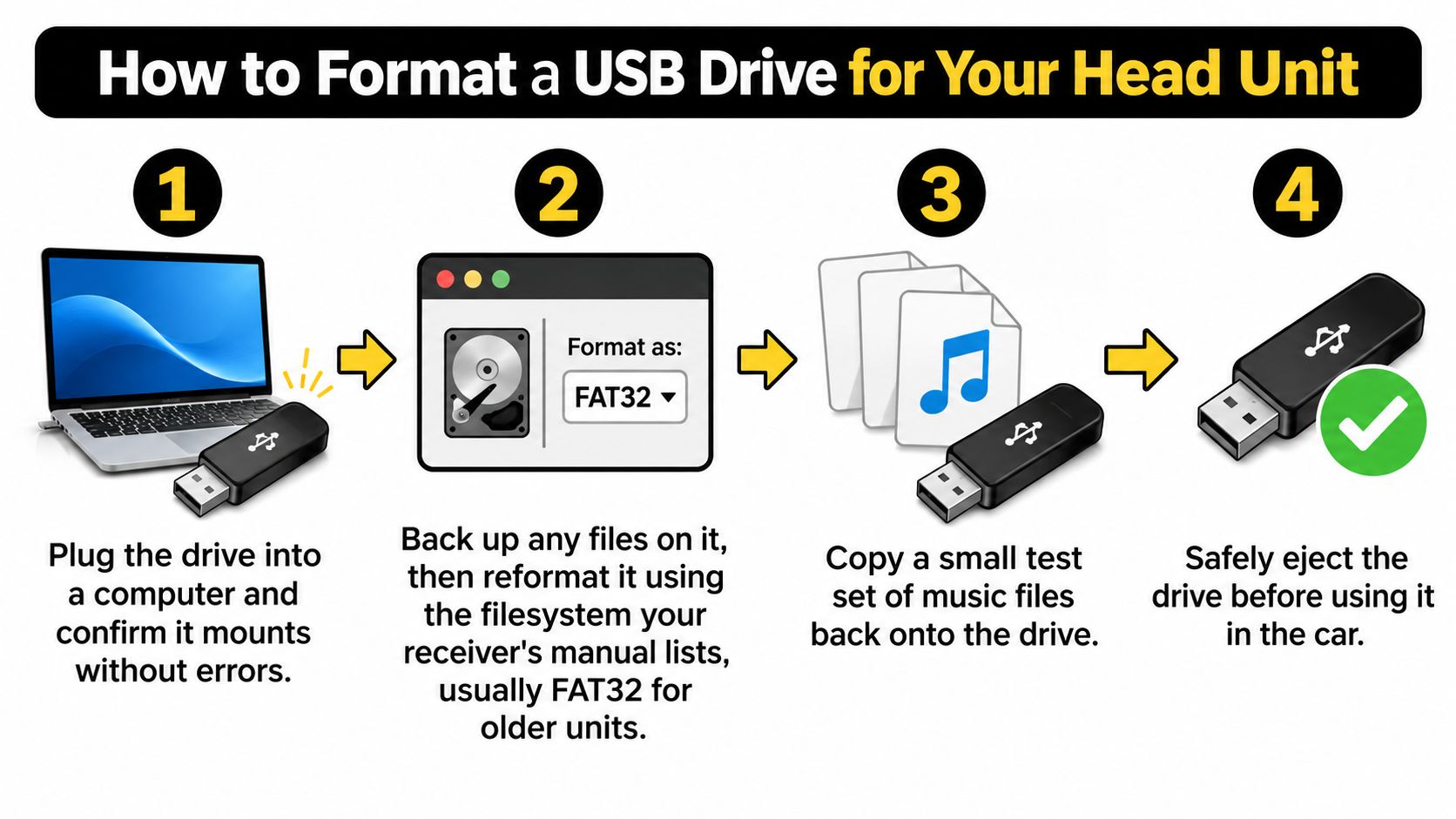
- Test on a computer first. Plug the drive in and confirm it mounts without repair warnings or disappearing. If a computer cannot read it reliably, your car will not either.
- Back everything up. Formatting erases the drive, so copy anything you need to the computer before you continue.
- Use the filesystem named in the receiver manual. Older units commonly list FAT32, while many newer units also list exFAT. Do not guess. A correct-looking drive in the wrong filesystem can appear completely dead.
- Create one partition only. Delete extra partitions and avoid encryption. A partition works like a separate shelf, and many receivers check the first shelf, then stop.
- Start with a modest-capacity test drive. Very large drives can exceed a receiver's capacity, folder, or track limits. Check those limits in the manual before loading your collection.
-
Rename test files. Use short names without special characters, for example
track01.mp3. Long names and damaged metadata can hide folders or files. - Copy three test files, then test in the car. Safely eject the drive, plug it in, and confirm folders and filenames appear and play. Load the full library only after that test passes.
Practical rule: If the small test drive works, the receiver and port are probably fine. Add music in batches so one bad folder cannot disguise itself as a hardware failure.
Why This Order Matters
The USB 2.0 specification from USB.org defines transport behavior, not your receiver's media library policy. Compliance does not guarantee support for every filesystem, codec, capacity, or partition layout, so vehicle-specific documentation remains the controlling reference.
Watch for exFAT or NTFS incompatibility, multiple partitions, encrypted drives, and charge-only sockets mistaken for data ports. FAT32 limits how large any single file can be, so a very long WAV file can fail even when the drive shows free space.
Record the drive model, filesystem, file extension, and receiver behavior. That note turns a vague complaint into a fault you, or an installer, can reproduce.
Organizing Music Files for Reliable Playback
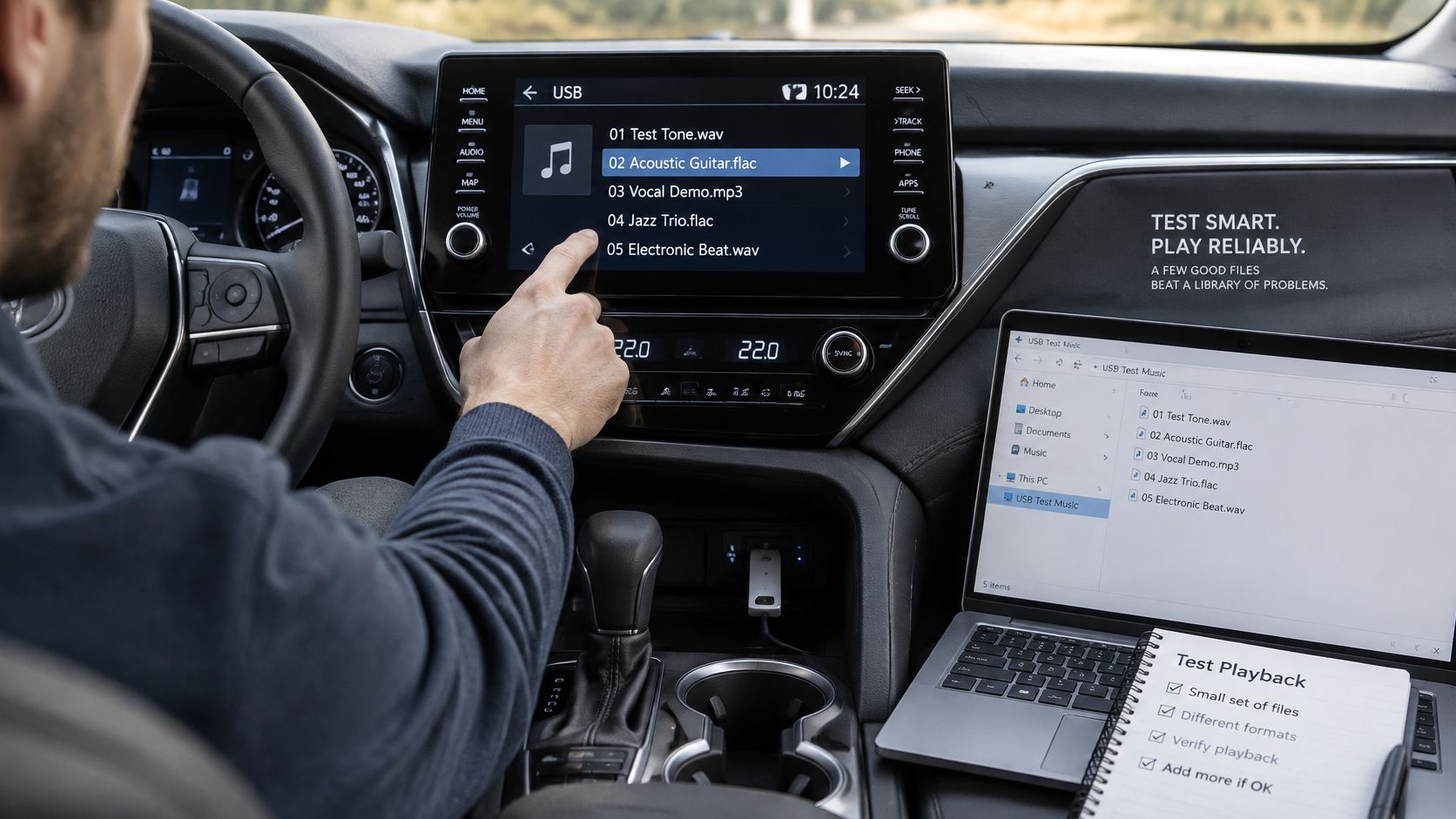
A large library makes every failure ambiguous. If one track deep in the list refuses to play, the receiver, the file, its metadata, or the folder path all become suspects. A small test set removes that ambiguity. Use the same five to ten tracks you copied during the format test as your controlled listening set. That gives you one clean baseline before the full collection goes on the drive.
Within that set, include at least one 44.1 kHz, 16-bit WAV, one high-bitrate MP3, and one file in your preferred format, all with simple metadata and short filenames. The Library of Congress guide to sound quality describes 44.1 kHz/16-bit PCM as CD-quality and identifies sampling frequency and bit depth as principal fidelity characteristics for linear PCM audio.
What Each Test File Tells You
MP3 is the safer baseline because support is common across receivers. If a clean, high-bitrate MP3 will not play, check the drive format, the port, and the receiver's source setting before blaming codecs.
WAV removes compression from the test, but the files are large. FLAC can sound excellent on receivers that support it, yet converting a whole library before testing one file wastes an evening. A plain explanation of audio formats for podcast delivery can also help if you're deciding between compressed and uncompressed copies.
| Format | Typical head unit support | Setup note |
|---|---|---|
| WAV 44.1 kHz/16-bit | Check the manual; many receivers support WAV | Large files, fewer tracks per drive |
| FLAC | Some newer receivers | Confirm in manual before converting a library |
| AAC / M4A | Selected receivers listed in manual | Test one file first |
Don't assume a higher sample rate will sound better in the car. A receiver may resample or reject high-resolution material, and upsampling a normal file doesn't add detail that wasn't in the original recording.
Play the same five to ten tracks from USB, then through Bluetooth or your phone. If they fail everywhere, fix the files. If they fail only on USB, keep testing the drive and receiver.
Keep a simple pass or fail log with extension, codec, sample rate, bit depth, bitrate, channel count, album art size, and seek behavior. Note whether fast forward works too. That log catches the usual traps, low-bitrate MP3 artifacts, inconsistent metadata encoding, oversized album art, and unsupported lossless variants, before they spread through your whole library.
How to Connect a Phone or Drive and Pick CarPlay or Android Auto
You plug in, the phone buzzes, the screen stays on the radio, and you start swapping cables at random. Work through the connection in the same order every time instead. Changing ports, cables and settings all at once makes a simple fault look mysterious, and it hides which change fixed it.
- Choose a certified data cable. A charge only cable can power a phone while carrying no data, so it can never start wired projection.
- Use the receiver's projection port. Some vehicles separate charging ports from data ports, and the wrong socket will never launch CarPlay or Android Auto.
- For a flash drive, turn the car to accessory or on, insert the drive, then select USB as the source. Give the receiver a moment to index a new drive before pressing anything else.
- Approve the phone's prompt. Trust or allow messages are easy to miss, and the receiver may wait until you answer.
- Enable the system in both places. Turn on CarPlay or Android Auto in the phone settings and in the receiver menu. One switched on without the other looks exactly like a hardware fault.
- Test before a long drive. Open navigation, play music, and make a short call while parked.
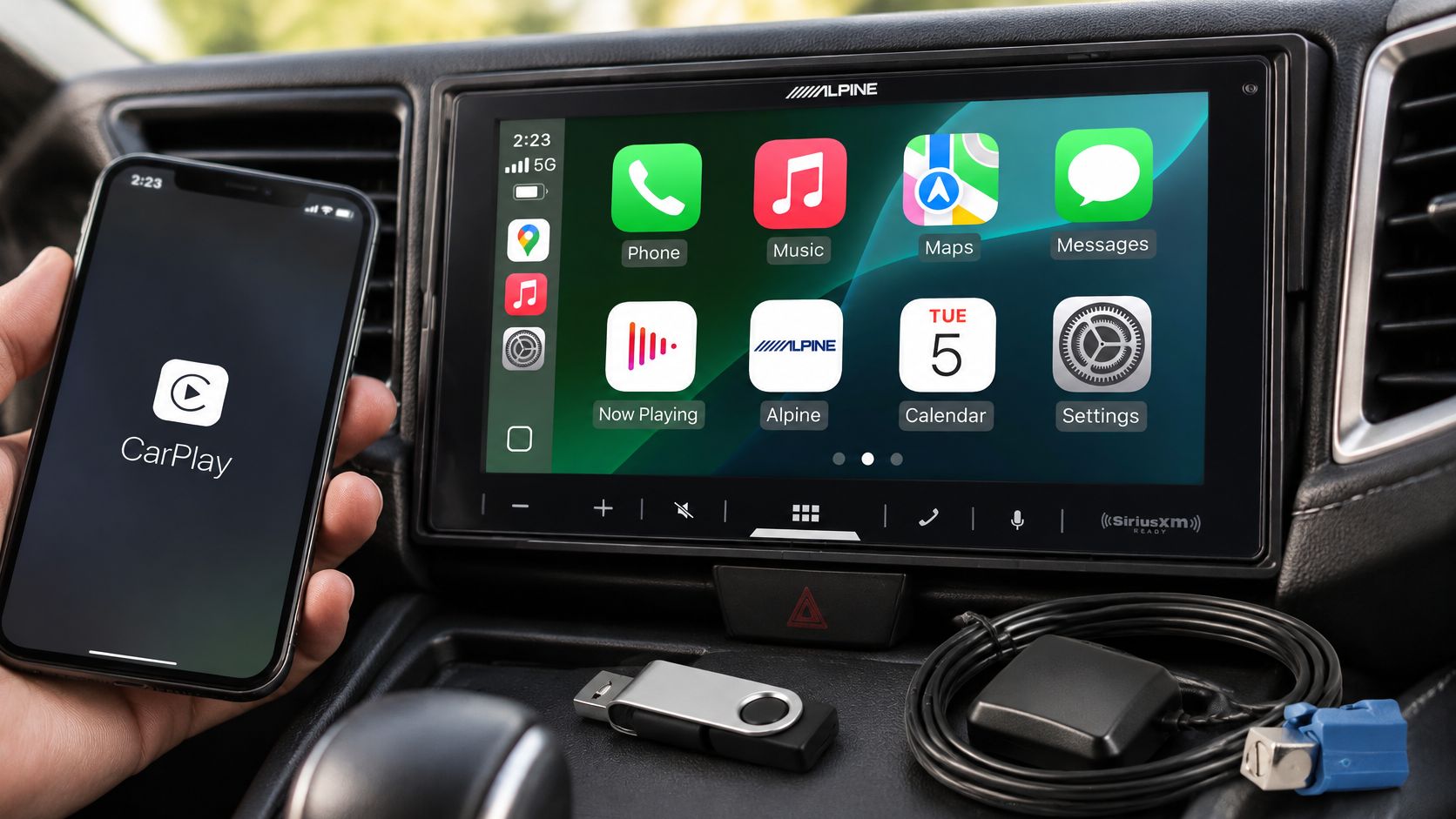
| Feature | Apple CarPlay | Android Auto |
|---|---|---|
| Phone needed | iPhone on a supported iOS version | Android phone on a supported version |
| Wired setup | USB cable from iPhone to receiver | USB cable from Android phone to receiver |
| Wireless setup | Supported receivers only | Supported receivers only |
| Map apps | Apple Maps, Google Maps, Waze | Google Maps, Waze |
| Charging while connected | Usually yes, with a suitable port | Usually yes, with a suitable port |
Our comparison of CarPlay and Android Auto can help you choose, but your phone normally makes that decision for you. A driver with an iPhone needs CarPlay support, an Android driver needs Android Auto, and mixed households should look for both.
USB-A, USB-C, and the Adapter Trap
USB-A and USB-C describe the plug shape; the port's data and power capability is set separately. The connector tells you the shape of the doorway, not the width of the hallway behind it. A USB-C socket may carry files and projection, charge only, or deliver high wattage through USB Power Delivery, while an older USB-A port may read a flash drive happily and still charge a phone slowly. Smartphone connectivity turns up repeatedly in vehicle dependability surveys, and the complaints usually resolve to a cable or a port rather than a dead receiver. Checking what the port can do beats trusting the connector's shape.
Adapters deserve suspicion. One may preserve charging while breaking data, projection, or digital audio, which is why an adapter that works for a passenger's phone can fail the moment you try to launch projection. Test the phone with a direct, known good cable before judging the receiver.
Receivers such as the Alpine iLX-W770 Car Receiver – Wireless Audio for Any Vehicle support wireless and wired Apple CarPlay and Android Auto, Bluetooth calling and streaming, and a USB input. Even with a wireless unit, keep one labelled data capable cable in the glovebox. It's your fastest diagnostic tool when wireless pairing misbehaves.
Troubleshooting USB Errors, Symptom by Symptom
A drive that played every track last week now reads as empty, and the receiver offers one word of explanation. That word changes by brand. One unit says No Device, another says Unsupported, and a third returns to FM radio, yet all three can be rejecting the same filesystem or the same tired cable.
Treat USB trouble as a chain: drive, cable, port, phone software, head-unit firmware. A chain fails at its weakest link, and swapping parts in random order only hides which link broke. Work them in a fixed order and every test rules one possibility out.
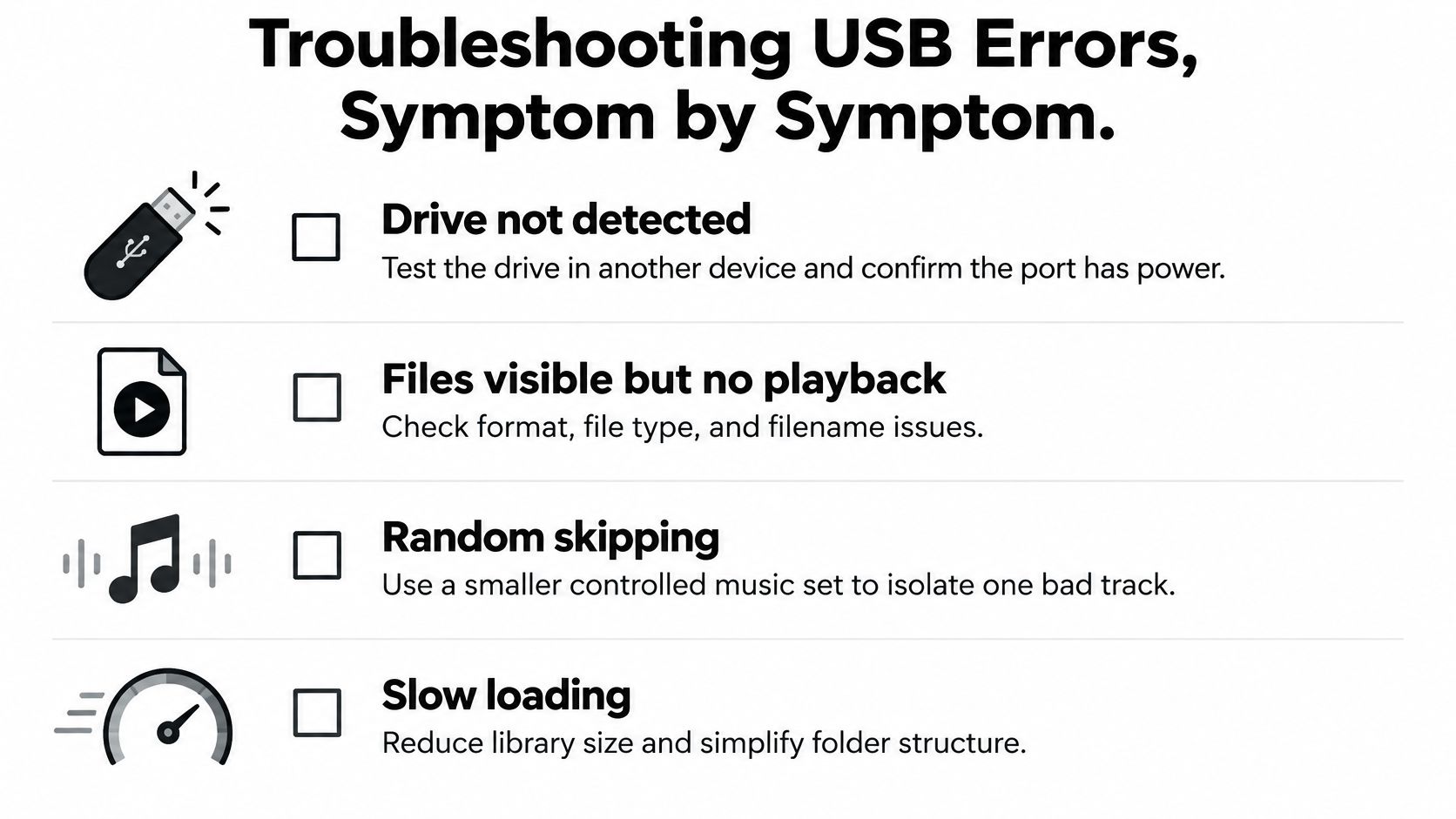
| Symptom | Likely cause | First fix |
|---|---|---|
| Drive not detected | Filesystem, multiple partitions or port power | Reformat to a listed filesystem with one partition |
| Folders or names missing | Unsupported characters or metadata damage | Rename files, rebuild the drive |
| Phone charges, CarPlay will not start | Charge-only cable or wrong port | Use a certified data cable in the projection port |
| Audio skips or stutters | Damaged files, low bitrate or port debris | Re-encode the track, clean the port |
| CarPlay drops out mid-drive | Cable damage, debris or software bug | Replace cable, update phone and receiver firmware |
| Error text varies by receiver | Format or capacity not supported | Test with a small, known-good drive |
Work the System, Not Just the Cable
A cable can carry enough current to charge a phone while failing the steadier data handshake that projection depends on. Run a thumb along both ends, reseat each connector, and shine a light into the phone port and the car port. Lint packed against the pins looks like a software fault and behaves like one. Poor-quality cables, dust, debris, and bent or damaged port contacts account for most CarPlay interruptions, and our guide to CarPlay not working walks through those checks in more detail.
Next, run a controlled swap test. Hold the receiver and the port steady and change one variable at a time: a second known-good cable first, then a second phone using that same cable. If the second phone connects, the fault sits in the first phone's connection settings, so reset that profile instead of shopping for a receiver.
Change one part at a time and write down the result. Change the cable, port, and phone together and a sudden fix tells you nothing about what failed.
Firmware comes after the physical checks. Update the phone and the receiver, then rerun the exact test you ran before. Firmware closes known bugs and handshake quirks; it will not repair a crushed conductor or a port packed with debris. Receiver replacement is the last step, justified only once a clean port, a certified data cable, current software, and a second phone have all failed the same repeatable test.
Decide Whether to Fix It Yourself or Book an Install
A receiver that ignores every drive you insert is telling you something different from one that drops CarPlay only when you hit a bump. Separate those two cases before you spend money. Fix it yourself when a clean test with a known-good drive, a certified cable, and a second phone point to one replaceable item you can name. Book an install when every known good test fails at the receiver, factory controls stop working, or the job needs a harness or interface module.
| Situation | Try yourself | Call a professional |
|---|---|---|
| Drive not detected on any test | Reformat and test a second drive | If the receiver rejects every format |
| CarPlay drops with several phones | Replace cable, clean port | If the port is damaged or loose |
| Steering controls lost after receiver swap | Check manual for a harness | Yes, before wiring is cut |
| Upgrade to a CarPlay receiver | Compare receiver specs | Yes, for harness and firmware checks |
A professional installer checks harness compatibility, retained steering wheel controls and backup camera functions, integration modules, and firmware before panels go back on. That matters on vehicle-specific upgrades such as the Apple CarPlay Stereo Nissan Altima 2007-2012, where the receiver is listed for that model range and the install still depends on the correct harness and retained factory features. If you are unsure which side of the line you are on, the test results usually answer it: one failed part you can swap is a DIY job, while a pattern that follows the receiver is an installation question.
We offer Apple CarPlay and Android Auto integration in Delaware, local installation in Bear, and appointment scheduling. Bring the drive, cable, phone, and the test notes you recorded earlier. Those notes save diagnostic time and help us confirm whether you need a cable, a port repair, an interface, or a different receiver.
If your tests point to a damaged port, a missing interface, or a receiver that can't provide the USB functions you need, visit Audio Jam Inc to schedule an appointment for local installation in Bear. Bring your drive, cable, phone, and test notes, and we'll check the complete connection chain, confirm harness and factory feature retention, and set up CarPlay or Android Auto integration that works reliably before you leave.