

CarPlay Not Working: Quick Fixes That Actually Work

You plug in your iPhone, wait for the familiar CarPlay screen, and get nothing. The vehicle stays on its old infotainment menu, Maps refuses to load, and the steering-wheel voice button produces silence. You unplug, reconnect, try another angle, and start wondering whether the phone, cable, or entire dashboard has failed.
That frustration makes sense. CarPlay becomes part of your driving routine for navigation, calls, messages, and audio, so a small connection failure disrupts more than entertainment. The useful news is that CarPlay not working usually isn't a catastrophic fault. The cause is commonly a setup condition, a damaged data path, a stale wireless profile, outdated vehicle software, or a head unit that no longer communicates reliably with a newer iPhone.
The fastest fix comes from separating those causes instead of repeating random resets. Apple's official CarPlay troubleshooting guidance starts with compatibility, Siri, connection method, pairing, restrictions, and vehicle firmware for exactly that reason.
Table of Contents
- The Moment CarPlay Goes Dark
- Start With the Basics Every Driver Should Check First
- Why Wireless CarPlay Fails in Ways Wired Does Not
- Software Updates That Break CarPlay and How to Recover
- When Your Head Unit Is the Real Problem
- Knowing When to Stop Troubleshooting and Call a Professional
- Your CarPlay Fix Checklist Before You Hit the Road
The Moment CarPlay Goes Dark
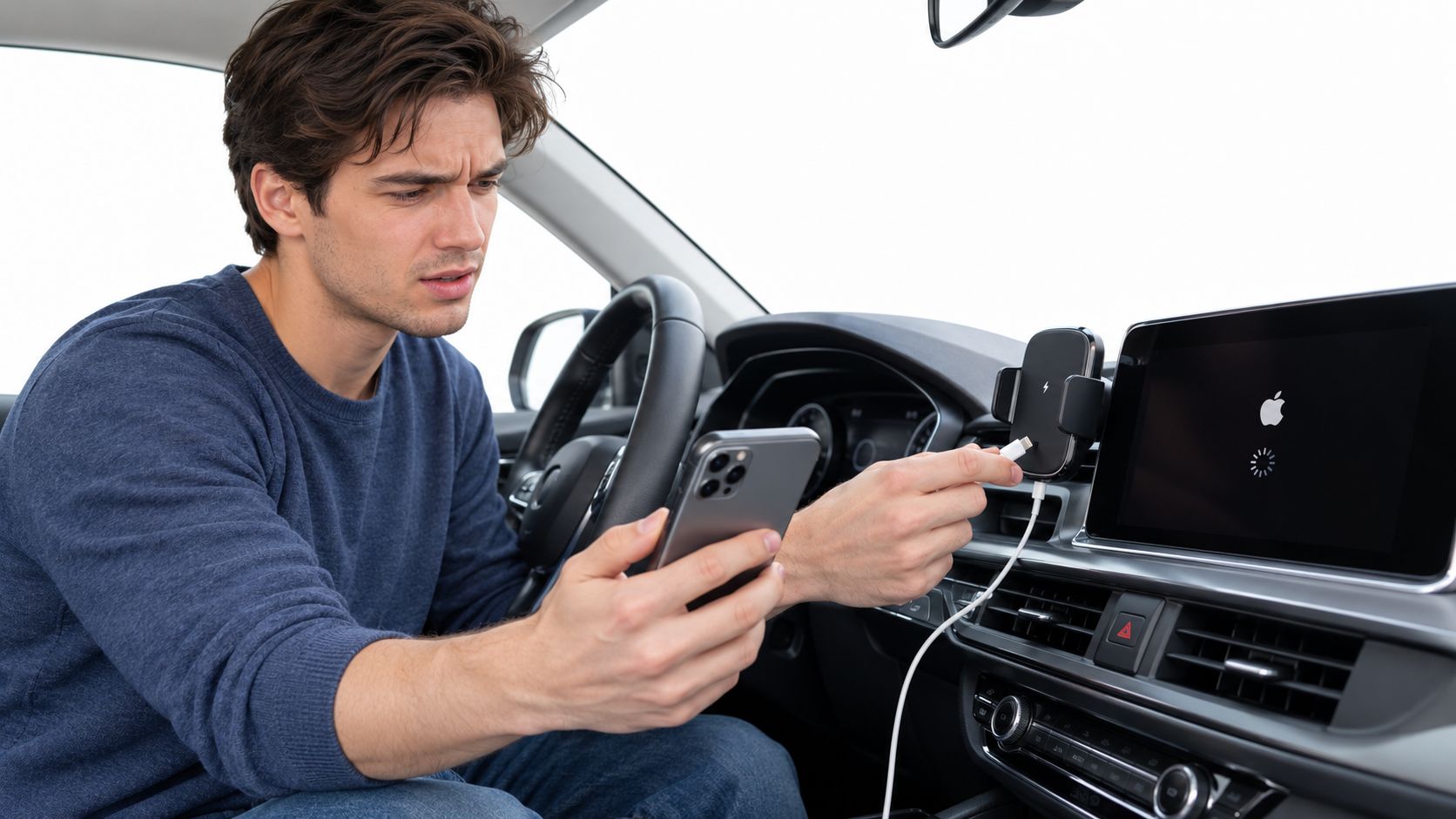
A driver arrives late, starts the engine, and reaches automatically for the cable. The iPhone begins charging, but the dashboard doesn't switch to CarPlay. The screen may remain frozen on the radio interface, show a generic USB message, or display the phone without offering navigation or audio.
On the bench, that symptom tells an installer very little by itself. Charging proves that power is moving. It doesn't prove that the USB connection can carry data, that the vehicle supports the phone's connection method, or that the head unit completed the CarPlay handshake. Wireless systems add another layer, because Bluetooth pairing, Wi-Fi communication, and saved connection profiles must all cooperate.
CarPlay's rollout also created compatibility boundaries that still affect drivers. Apple introduced the concept as “iOS in the Car” in 2013, unveiled CarPlay at the Geneva International Motor Show on March 3, 2014, and shipped the first production installation in the Ferrari FF during 2014, as documented in this CarPlay history and compatibility timeline. Widespread adoption followed later, while wireless CarPlay arrived in 2018.
Installer's rule: Don't call the head unit dead until you've proved that the phone, cable or wireless profile, vehicle port, and software layer all work independently.
The daily routine feels broken because CarPlay normally hides those dependencies. When it works, you press one button and everything appears. When it fails, diagnosis means tracing the complete chain rather than blaming the iPhone first.
Start With the Basics Every Driver Should Check First
Begin with conditions that can block CarPlay before the vehicle even attempts a meaningful connection. Confirm that your vehicle and iPhone support the CarPlay method you're trying to use, then make sure the phone is on and showing the Home screen.
Apple specifically instructs drivers to verify that Siri is enabled, because CarPlay depends on Siri for voice interaction. On the iPhone, open Settings, search for Siri, and enable the available Siri listening and side-button options. Then check Settings, Screen Time, Content & Privacy Restrictions, Allowed Apps and Features. CarPlay must not be blocked there.
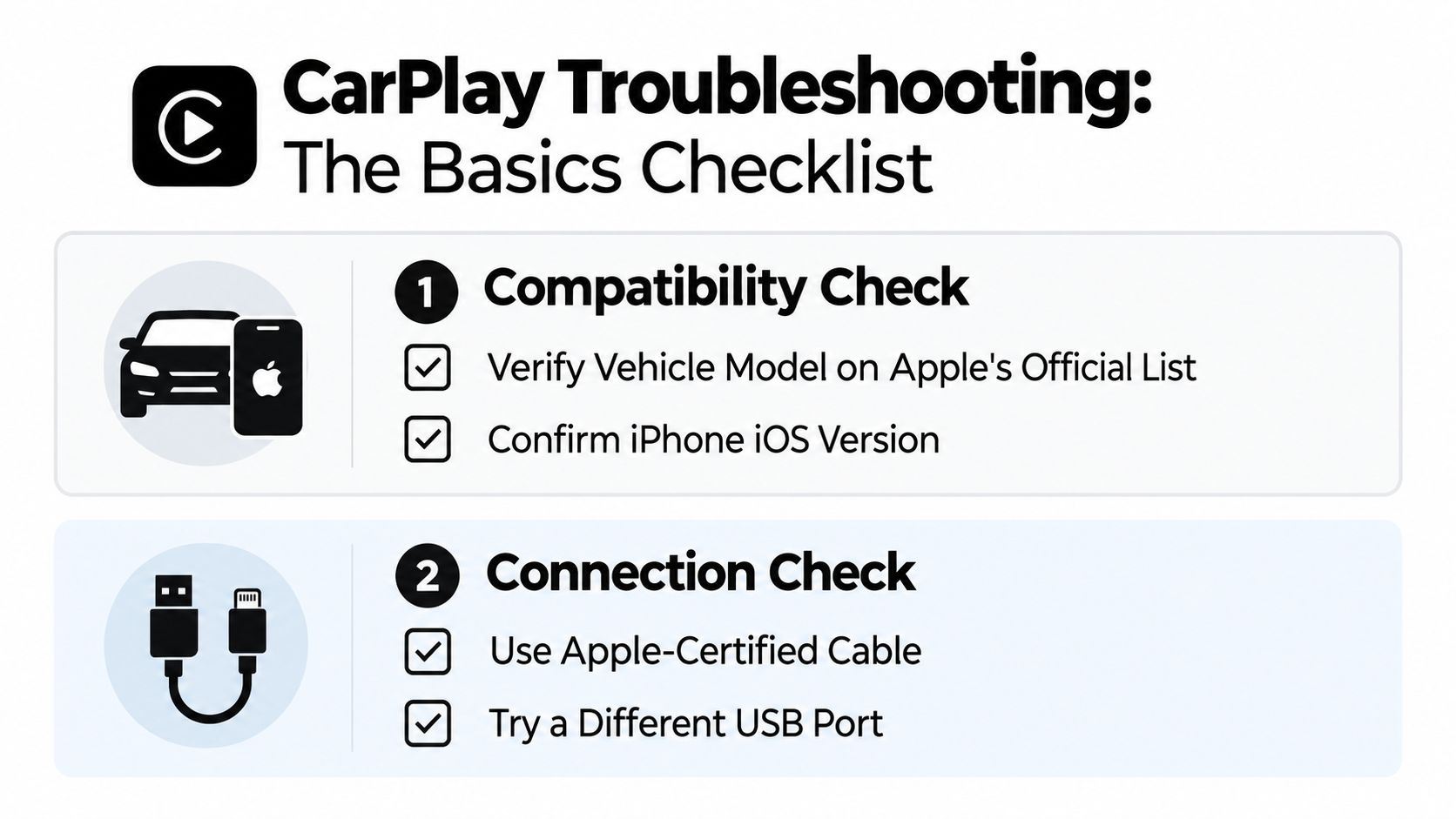
Use this order:
- Restart the iPhone. A reboot clears connection states that can remain stuck after a vehicle ignition cycle or iOS change.
- Restart the infotainment system. Turn the vehicle off, open and close the driver's door if the vehicle requires a full sleep cycle, and allow the display to shut down completely.
- Try Airplane Mode briefly. Turn it on, wait, then turn it off to refresh the phone's radios. For wireless CarPlay, turn Bluetooth and Wi-Fi back on before reconnecting.
- Inspect the phone port. Lint, dirt, bent contacts, or a loose Lightning or USB-C connection can interrupt data even while charging still works.
- Use the correct vehicle USB port. Some vehicles provide several sockets, but only one may support CarPlay data.
- Test another known-good cable. A cable that charges isn't automatically a cable that carries reliable data.
Apple's supported CarPlay vehicle information is the right place to verify the car rather than relying on a sales listing or a forum comment. If you're still unsure whether the port or cable is passing data, connect the iPhone to a computer and check whether Finder or iTunes recognizes it.
For a visual walk-through of the first checks, use this CarPlay troubleshooting video.
Why Wireless CarPlay Fails in Ways Wired Does Not
Wireless CarPlay can fail even when the iPhone and vehicle are compatible. It depends on an initial Bluetooth relationship and a Wi-Fi link for the CarPlay data session. A cable removes those radio conditions, so a wired test quickly separates a wireless fault from a broader CarPlay problem.
If the CarPlay screen never appears, the handshake may be failing before the session starts. Dropouts after a successful connection point more often to interference, a weak wireless module, another device competing for the connection, or a saved pairing that keeps selecting the wrong iPhone. Apple's wireless CarPlay connection instructions cover Bluetooth, Wi-Fi, Auto-Join, and the saved vehicle relationship. Recent reporting also discusses radio interference and recurring wireless connection problems.
Run these checks in order:
- Turn Wi-Fi and Bluetooth off, then on again. This refreshes the iPhone's radio state without changing other settings.
- Forget the vehicle on the iPhone. Open Settings, General, CarPlay, select the vehicle, and choose Forget This Car.
- Delete the phone from the vehicle. Remove the iPhone from the Bluetooth list and the wireless CarPlay list if the head unit keeps them separately.
- Disable competing connections temporarily. A phone hotspot, wireless adapter, dash camera, or radar detector can add radio traffic near the dashboard.
- Pair one phone at a time. The head unit may Auto-Join to a saved iPhone nearby, leaving the intended phone waiting.
| Failure Type | Wired CarPlay | Wireless CarPlay |
|---|---|---|
| Cable or USB port fault | Common, because data and power share the physical path | Not applicable to the wireless link |
| Stale pairing record | Possible, but usually easier to isolate | Common, because Bluetooth and Wi-Fi profiles can persist |
| Radio interference | Not normally involved | Can cause dropouts or failed handshakes |
| Charge-only cable | Blocks CarPlay data | Not involved |
| Competing phone | Usually selected through the USB connection | Can capture Auto-Join behavior |
Location changes can reveal an environmental cause. If wireless CarPlay works in one place but fails in another, a pairing reset will not remove interference. A cable swap will not clear a phantom wireless profile, either. That distinction keeps software, hardware, and radio problems from being treated as the same fault.
Software Updates That Break CarPlay and How to Recover
Software problems are harder to identify because the same symptom can come from three different layers. The iPhone runs iOS, the vehicle runs infotainment firmware, and an aftermarket receiver has its own manufacturer software. Updating only the phone can leave the other two layers unable to handle the new connection behavior.
Apple's guidance recommends updating the iPhone and checking for vehicle firmware updates. Independent Chevrolet repair guidance also recommends updating software, restarting both devices, and trying the original or a high-quality compatible cable. It notes that a vehicle reboot can take 5 to 15 minutes before CarPlay reconnects, so drivers shouldn't interrupt a full infotainment restart too quickly, as described in this Chevrolet CarPlay repair guide.
Update in the right order
Install the available iOS update first, then check the vehicle manufacturer's support page for infotainment firmware. If you have an Alpine, Pioneer, Kenwood, Sony, or another aftermarket receiver, search that manufacturer's exact model number, not just the brand name. Firmware files and installation procedures vary by receiver.
After updating:
- Force-restart the iPhone.
- Reboot the vehicle infotainment system completely.
- Clear the vehicle's stored CarPlay and Bluetooth devices.
- Forget the vehicle on the iPhone.
- Pair again as a new connection.
- Test wired operation before diagnosing wireless features.
A recent iOS release can expose an old head unit's weakness rather than create a new fault. If the failure started immediately after an update, record the iOS version and build before visiting a shop. Reverting iOS usually isn't a practical option for ordinary drivers, so the practical remedy is a compatible Apple patch, vehicle firmware update, or receiver update.
A charging cable can still be a failed CarPlay cable
A charge-only cable has power conductors but lacks the data path CarPlay needs. The phone may show a charging icon while the dashboard receives no usable information. Data-capable USB-A and USB-C cables carry both power and signal, but cheap promotional or convenience-store cables can vary in construction.
Test the cable with a computer. If Finder or iTunes recognizes the iPhone, the cable is carrying data. If the phone only charges, replace it.
| Feature | Charging-Only Cable | Data-Capable Cable |
|---|---|---|
| Charges the iPhone | Yes | Yes |
| Transfers data to a computer | No | Yes |
| Can complete a wired CarPlay handshake | No | Yes |
| Useful for diagnosing CarPlay | No | Yes |
| Best practice | Retire it from the CarPlay kit | Keep it labeled and secured |
Don't waste time resetting network settings while using a cable that cannot transfer data. Confirm the physical data path first.
When Your Head Unit Is the Real Problem
I've seen older Pioneer NEX receivers that still play radio, respond to buttons, and charge a phone, yet fail as CarPlay devices. A unit installed around the 2016 model year may appear healthy until a newer iPhone exposes its aging USB interface, firmware limitations, or worn connector.
The warning signs are consistent. The iPhone charges but CarPlay never launches. The system connects, then drops during a drive. Wireless pairing completes but fails whenever the vehicle starts. The USB socket feels loose, or the receiver only works when the cable is held at a particular angle.
Prove the hardware before replacing it
A bench technician will normally use a known-good data cable, a tested iPhone, and a reliable USB port to isolate the receiver. The technician also inspects the USB connector for looseness or bent pins and checks the manufacturer's firmware history for the exact model.
A factory CarPlay system, an aftermarket receiver, and a retrofit module each follow a different replacement path. A factory vehicle may need a media hub or infotainment module. An aftermarket installation may need a receiver firmware update, replacement USB lead, or new head unit. A retrofit kit may have a separate wireless module that has failed.
CarPlay launched in 2014 and expanded rapidly as vehicle systems moved from early implementations to newer wired and wireless designs. That history matters because compatibility isn't determined by the iPhone alone. If a receiver is beyond its support window and no firmware update addresses the failure, repeated resets only delay the necessary repair.
If the same tested iPhone and data cable fail on one receiver but work on another, stop troubleshooting the phone. The vehicle-side hardware now has to answer for the fault.
Knowing When to Stop Troubleshooting and Call a Professional
DIY troubleshooting is appropriate while the symptoms are simple and repeatable. It's time to call an installer when the failure follows ignition cycles, the display freezes or boots into recovery mode, Bluetooth won't pair after the saved devices have been cleared, or an aftermarket system produces persistent dashboard error messages.
A professional shop can test the USB hub behind the dash, inspect wiring, load manufacturer firmware, and check integration modules that ordinary phone settings can't reveal. This matters with aftermarket CarPlay modules, CAN-bus adapters, damaged media hubs, and systems that lose audio during calls even though the display remains active.
Bring the iPhone, the cable that normally works, and the vehicle's registration or identifying details to the appointment. Write down when the issue began, whether it started after an iOS or vehicle update, whether wired and wireless modes behave differently, and whether the failure occurs in specific locations.
Ask the shop to separate diagnosis from replacement. A proper inspection should identify whether the fault is the phone, cable, USB port, wireless module, receiver firmware, vehicle integration interface, or head unit itself. That distinction prevents replacing a receiver when a damaged USB hub is the cause.
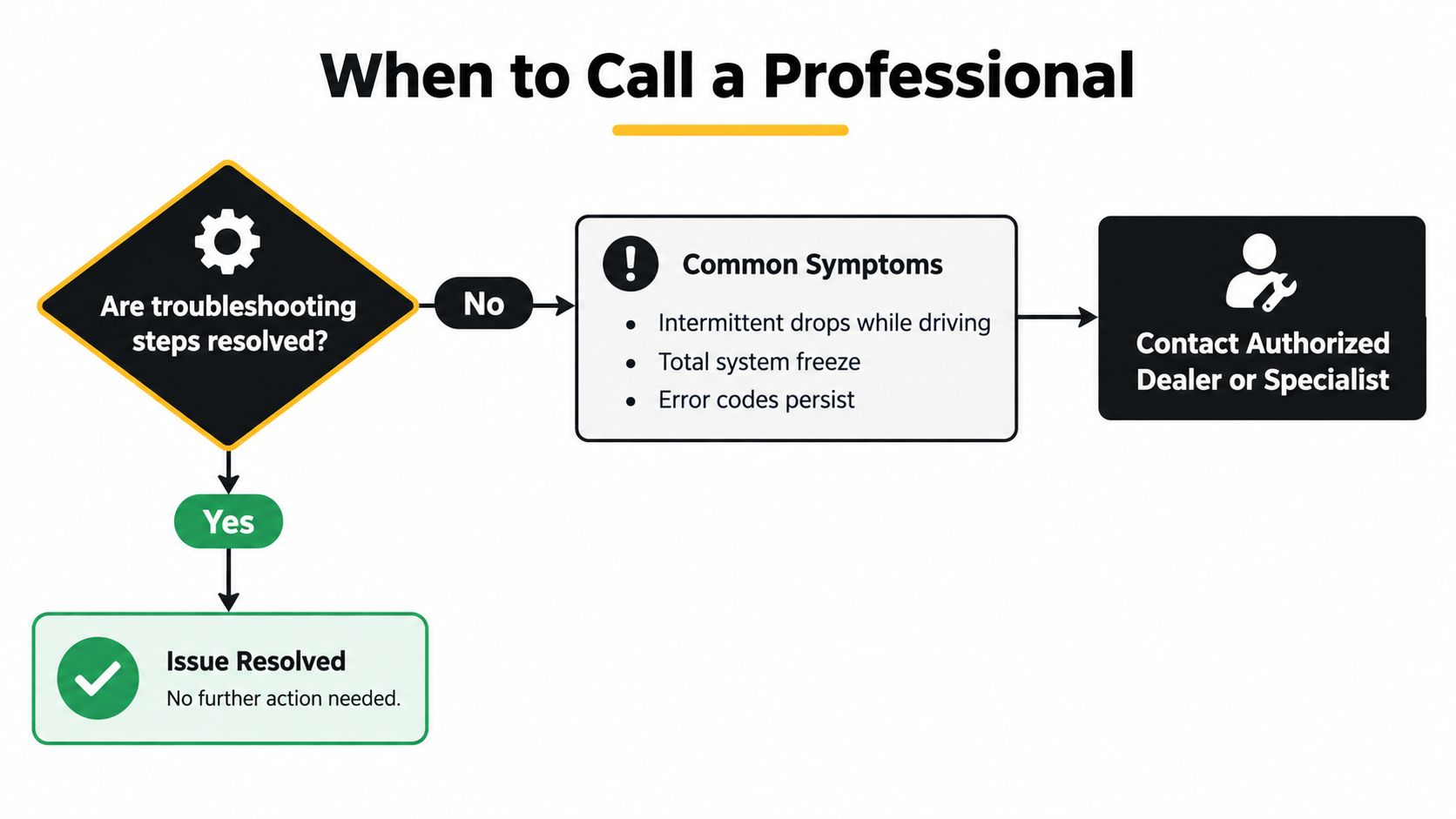
A good installer will also explain the trade-off between repair and replacement. A port or cable repair can preserve a compatible receiver. A receiver that no longer supports the current iPhone and has no meaningful firmware path may be better replaced with a modern unit that matches the vehicle's steering-wheel controls, backup camera, and factory features.
Escalation isn't failure. It's the point where controlled testing is safer and faster than guessing behind the dashboard.
Your CarPlay Fix Checklist Before You Hit the Road
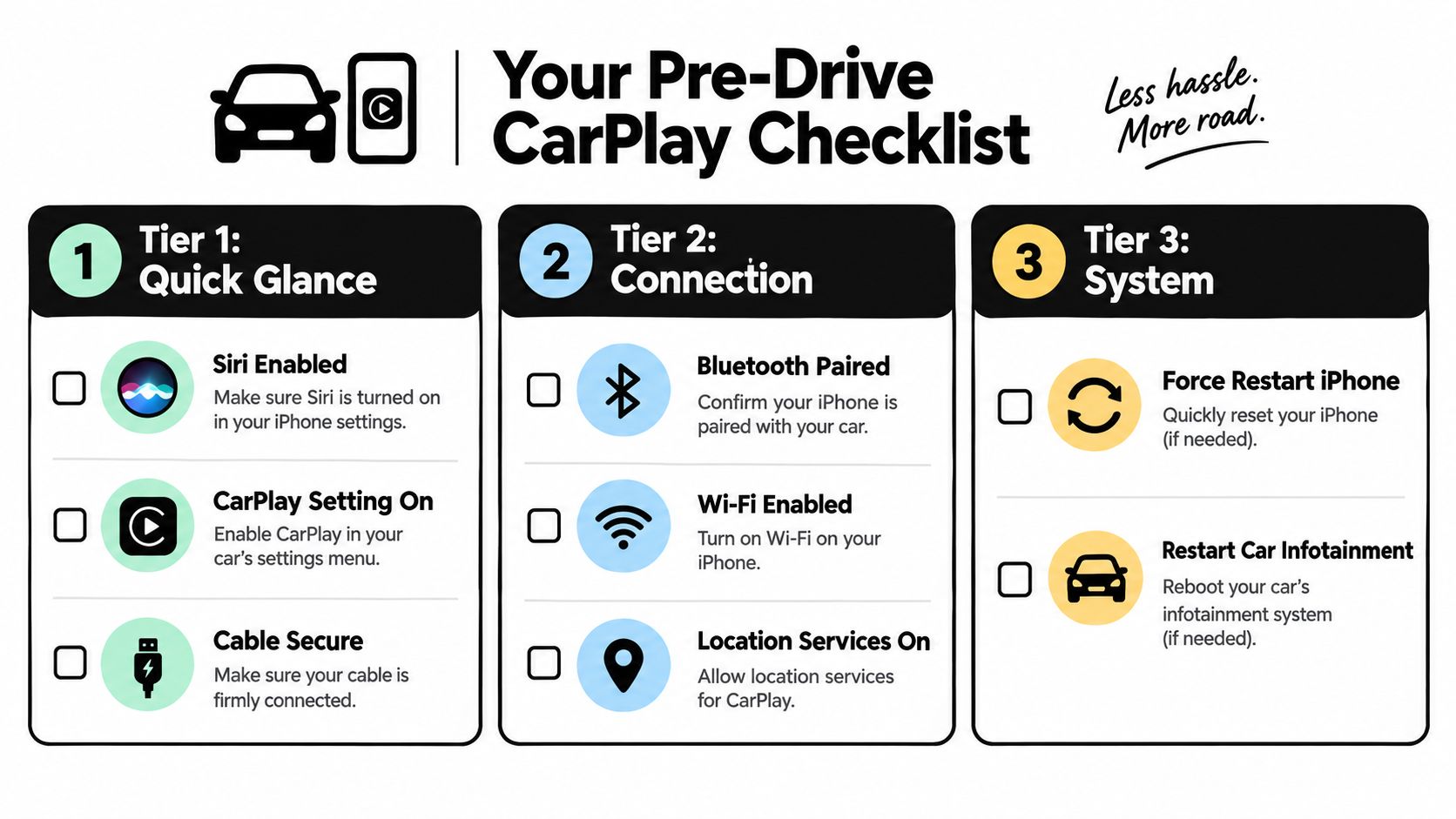
Save this checklist on the phone that normally connects. Work from the top down, and don't jump to a factory reset before testing the simple physical and connection conditions.
First tier, quick checks
- Confirm compatibility: Verify that the vehicle supports CarPlay and the connection method you're using.
- Enable Siri: Check Siri settings before testing voice commands.
- Allow CarPlay: Review Screen Time and Content & Privacy Restrictions.
- Select the correct USB source: Use the vehicle port that carries data, not a charge-only socket.
- Unlock the iPhone: Keep it on the Home screen during the first connection attempt.
Second tier, connection tests
- Swap the cable: Use a known-good, data-capable cable and inspect the phone port for debris.
- Try another port: Test every vehicle socket that may support data.
- Restart both systems: Reboot the iPhone and infotainment system before reconnecting.
- Test wired mode: If wireless fails, use a cable to separate radio problems from receiver problems.
- Reduce interference: Move or temporarily disconnect nearby wireless accessories, including dash cameras and radar detectors.
Third tier, resets and escalation
- Forget the vehicle: Remove it from the iPhone's CarPlay settings.
- Clear the head unit list: Delete the phone from Bluetooth and CarPlay memory in the vehicle.
- Re-pair from scratch: Pair only the intended iPhone and confirm Auto-Join behavior.
- Update every layer: Check iOS, factory infotainment firmware, and aftermarket receiver firmware.
- Call a professional: Escalate recurring drops, damaged ports, persistent firmware errors, recovery-mode boots, or post-installation failures.
Cold temperatures can slow a vehicle system's startup, while a phone mounted beside competing wireless hardware can make an environmental issue look like a software defect. If the failure returns, record the iOS version, vehicle state, connection mode, location, and exact symptom before trying another reset.
For Delaware drivers who need a receiver upgrade, USB diagnosis, or CarPlay integration, Audio Jam Inc offers car audio sales and installation, including CarPlay-compatible head units and vehicle integration work. Visit the site to review compatible equipment or arrange professional help when repeated troubleshooting points to the dashboard hardware.